

License
For Data Lineage Metadata API licensing, submit the 3-character SID of one of the following:
-
SAP BW system
-
SAP BW/4HANA system
-
SAP S/4HANA ERP system
-
SAP HANA database
Requirements
Two Connection Options
The Data Lineage Metadata API supports two different ways to connect to your SAP system, depending on your landscape and preferences:
-
RFC Connection
-
Used for SAP BW or ECC systems.
-
This method communicates directly via RFC (Remote Function Call).
-
-
HANA SQL Connection
-
Used for direct access to SAP HANA databases (e.g., underlying BW/4HANA, S/4HANA, or standalone HANA systems).
-
This method uses the SQL API / ODBC / JDBC interface.
-
You can choose whichever method best fits your environment and security policies.
RFC Connection – Function Module Requirement
If you select the RFC connection method:
A custom function module (RFC_GET_STRING) must be installed in your SAP system to enable secure and efficient metadata extraction.
How to install this function module is described here:
Function Module for RFC connection
Important Exceptions – No Custom Function Module Required
Starting with Data Lineage Metadata API version 1.4.0 and the following SAP BASIS support package levels (or higher), the tool uses native SAP capabilities. In these cases:
No custom function module installation is needed.
Applicable releases:
SAP BASIS 7.51 SP13 or higher
SAP BASIS 7.52 SP09 or higher
SAP BASIS 7.53 SP07 or higher
SAP BASIS 7.54 SP05 or higher
SAP BASIS 7.55 SP03 or higher
SAP BASIS 7.56 SP01 or higher
Starting the Data Lineage Metadata API
The Data Lineage Metadata API can be launched from any machine (Windows or Linux/Unix) that has network access to your SAP system or the underlying SAP HANA database — no installation directly on the SAP server is required.
User and Authorization Requirements
Depending on the connection method you selected, create or use an appropriate technical user (BW, ERP or HANA) in your SAP system with the minimum necessary authorizations:
Installation
Windows
-
Download the latest version of the Data Lineage Metadata API.
-
Extract (unzip) the downloaded archive to a folder of your choice.
-
Open a terminal or Command Prompt to work with the tool.
Unix
Download the zip and start the following command:
sudo mkdir MetadataAPI; sudo tar -xvf <DataLineageFileName>.tar.gz -C MetadataAPI; sudo chmod +x MetadataAPI/DataLineage.sh; sudo chmod +x MetadataAPI/Core/DataLineage
Insert License
There are two ways to activate your Data Lineage Metadata API license, depending on what was provided to you:
-
A license file (.lic file) or
-
A license hash (a long alphanumeric string)
Follow the instructions in the appropriate subchapter below based on the format you received.
1. License file
Place the license file (license.lic) into the <Metadata API Folder>\Core folder of the extracted Data Lineage Metadata API directory.
2. License hash
In case you got a hash instead, insert it with the following command:
Windows
DataLineage.cmd insert-license -l <license hash>
Unix
./DataLineage.sh insert-license -l <license hash>
Configuring Connection Data
In the appsettings.json file, enter manually the required connection details and other configuration settings needed to run the Data Lineage Metadata API application.
At minimum:
-
BwErpSid
-
Server
-
SystemNumber
-
Client
-
User
For a complete list of all available configuration options, their format, and examples, refer to the official documentation: Configuration (appsettings.json)
Setting the Password
Use the following command in your terminal or command prompt to securely set an encrypted password in the appsettings.json file.
Examples:
-
For SAP BW, BW/4HANA, or S/4HANA ERP systems (using RFC connection):
Include the parameter-s <SID>(replace <SID> with your 3-character system ID, e.g.,-s A4H). -
For SAP HANA database connections:
Use the parameter-b <HANA SID>instead (replace <HANA SID> with your 3-character HANA database SID, e.g., -b HDB).
Windows
Run the following command in Command Prompt:
DataLineage.cmd set-password -s <SID>
This will open an interactive prompt where you can securely enter your password (it will not be displayed on screen).
Replace <SID> with your actual 3-character system ID (e.g., DataLineage.cmd set-password -s A4H).
The entered password will be encrypted and stored directly in the appsettings.json file.
For older versions (before 1.2.5):
DataLineage.cmd set-password -s <SID> -h <HANA Schema> -p <password>
Replace <SID> with your 3-character system ID, <HANA Schema> with the relevant HANA schema name (if required for your connection), and <password> with the actual plaintext password.
Unix
The following command will open a prompt to insert the password.
./DataLineage.sh set-password -s <SID>
For older versions (before 1.2.5):
./DataLineage.cmd set-password -s <SID> -h <HANA Schema> -p <password>
Run Application
The Data Lineage Metadata API is started from the command line and connects to one SAP system per execution.
To view available examples run the following command in your terminal or command prompt (from the folder containing the executable):
DataLineage.cmd --help
All available parameters and options can be found here: Commands of Metadata API
Windows
Run the application with the following command:
DataLineage.cmd extract-all -s <SID>
For older versions (before 1.2.5):
DataLineage.cmd extract-all -s <SID> -h <HANA Schema>
Unix
Run the application from the terminal:
./DataLineage.sh extract-all -s <SID>
For older versions (before 1.2.5):
./DataLineage.cmd extract-all -s <SID> -h <HANA Schema>
Scheduling Regular Metadata Extraction
In most use cases, it is recommended to extract metadata from your SAP system on a recurring basis (e.g., daily, weekly, or at specific intervals) to keep your lineage information up to date.
To achieve this, set up a scheduled (recurring) job that automatically runs the Data Lineage Metadata API at the desired frequency.
This chapter provides step-by-step instructions for creating and configuring such scheduled jobs in the following environments:
-
Windows (using Task Scheduler)
-
Unix/Linux (using cron)
This feature is available only from Data Lineage Metadata API version 1.4.0 and later.
Follow the appropriate section below based on your operating system. The process involves preparing the command (with all required parameters or referencing a configuration file), testing it manually first, then scheduling it to run unattended.
Important prerequisites before scheduling:
-
Ensure the command runs successfully manually (without errors) from the terminal/command prompt.
-
Store sensitive credentials securely in
appsettings.json(instead of passing them via command-line arguments) for unattended execution. -
Verify that the machine running the job has permanent network access to your SAP system or HANA database.
-
Choose a reasonable schedule that balances data freshness with system load (e.g., nightly during off-peak hours).
Windows
-
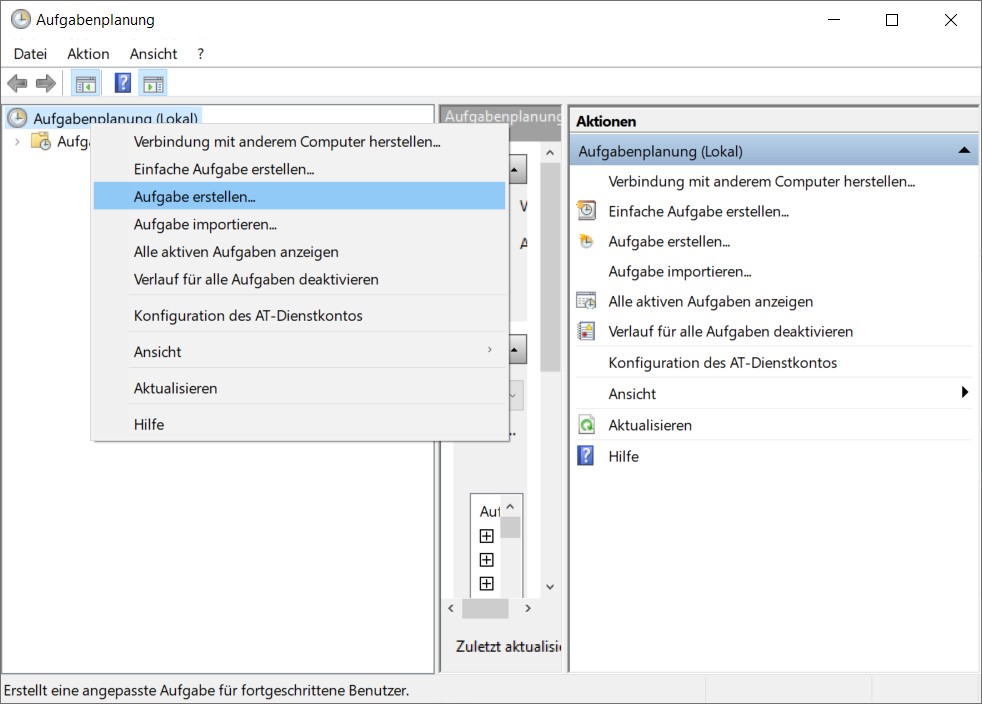
Open the Task Scheduler in Windows
-
Right Click > Create a task
-
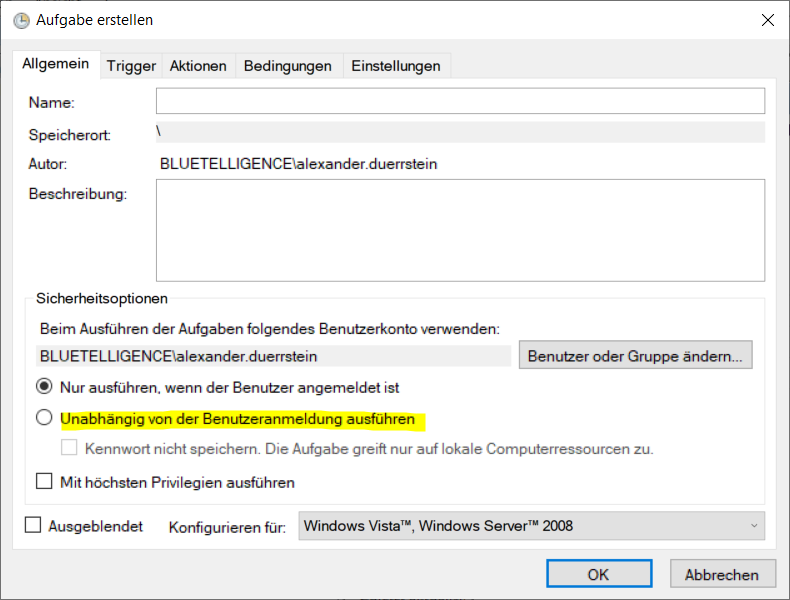
In the general tab, you can give the task a name and should choose the second option “Execute independently of the user login”. You can also change the user here
-
In the tab Trigger, you have to set the interval in which the task should be scheduled
-
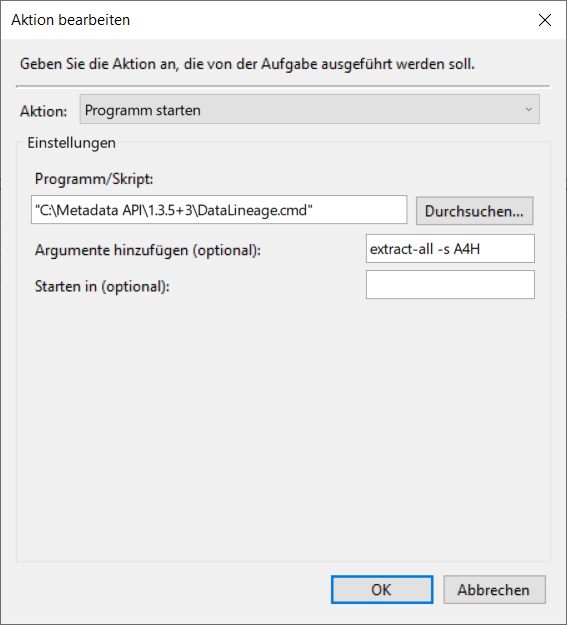
In the tab Actions, you have to insert the command which should be run.
Unix
-
Make sure DataLineage.sh has execution rights (chmod +x)
-
Edit the crontab file (crontab -e), adding the line for job
-
Example for a job every 5 minutes:
*/5 * * * * /<path>/DataLineage.sh extract-all -s <SID>
-
-
Make sure the job is in the jobs list after saving the file (crontab -l)
-
If the job doesn't run as expected, check the logs (grep "DataLineage" /var/log/syslog)