

After installing the Data Lineage Metadata API, you must manually place the SAP RFC library files in the installation folder to enable connections to your SAP system.
Two RFC library versions are available:
-
Recommended: NetWeaver RFC SDK (NWRFC)
This is SAP’s current, supported library. -
Legacy: Classic RFC (LIBRFC)
Although SAP no longer supports this older version, it remains functional in many cases. We strongly recommend using NWRFC instead for improved stability, security, and compatibility with modern SAP systems.
SAP distributes these libraries as .dll files (Windows) or equivalent shared libraries .lib.
Due to licensing restrictions, we are unable to include these files with the Metadata API.
As an SAP customer, you can download the required RFC SDK directly from the SAP Support Portal.
Obtaining and Installing the RFC Libraries
Requirements
You need an active S-User account to download the required files from the SAP Support Portal.
Step-by-Step Instructions
-
Log in to https://support.sap.com.
-
Navigate to the
Software Downloadsarea and Sign-In with your S-User. -
Search for “SAP NetWeaver RFC SDK” (for NWRFC) or the legacy “RFC SDK” (if you must use LIBRFC).
-
Alternative manual path:
Support Packages and Patches > By Category > Additional Components > SAP NW RFC SDK
-
-
Download the package matching your operating system (64-bit is recommended) and your SAP system’s kernel version, e.g.
Support Package SAP NW RFC SDK 7.50 Windows on x64 64bit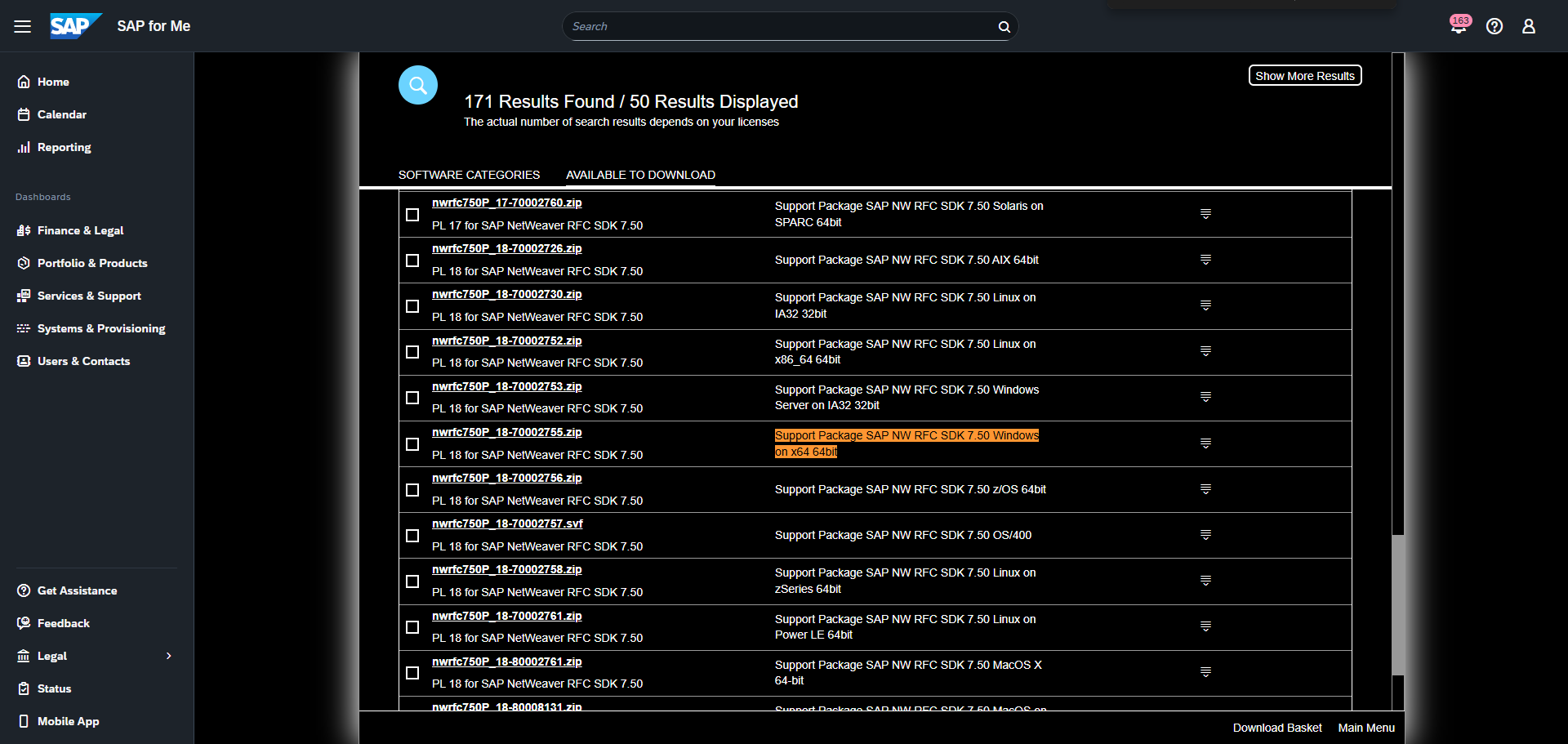
-
Extract the downloaded ZIP archive to a temporary folder.
-
From the extracted files (typically in the /lib/ subdirectory), select and copy the following DLL files:
-
icudt57.dll
-
icuin57.dll
-
icuuc57.dll
-
libicudecnumber.dll
-
libsapucum.dll
-
libsapucum.lib
-
sapnwrfc.dll
-
sapnwrfc.lib
-
-
Paste these files into the Core folder within your Data Lineage Metadata API installation directory
<Metadata API Folder>\Core.
After copying, restart the application or command-line tool to apply the changes. If connection errors occur, verify that the correct (64-bit) libraries were used and that no security software is blocking them.